


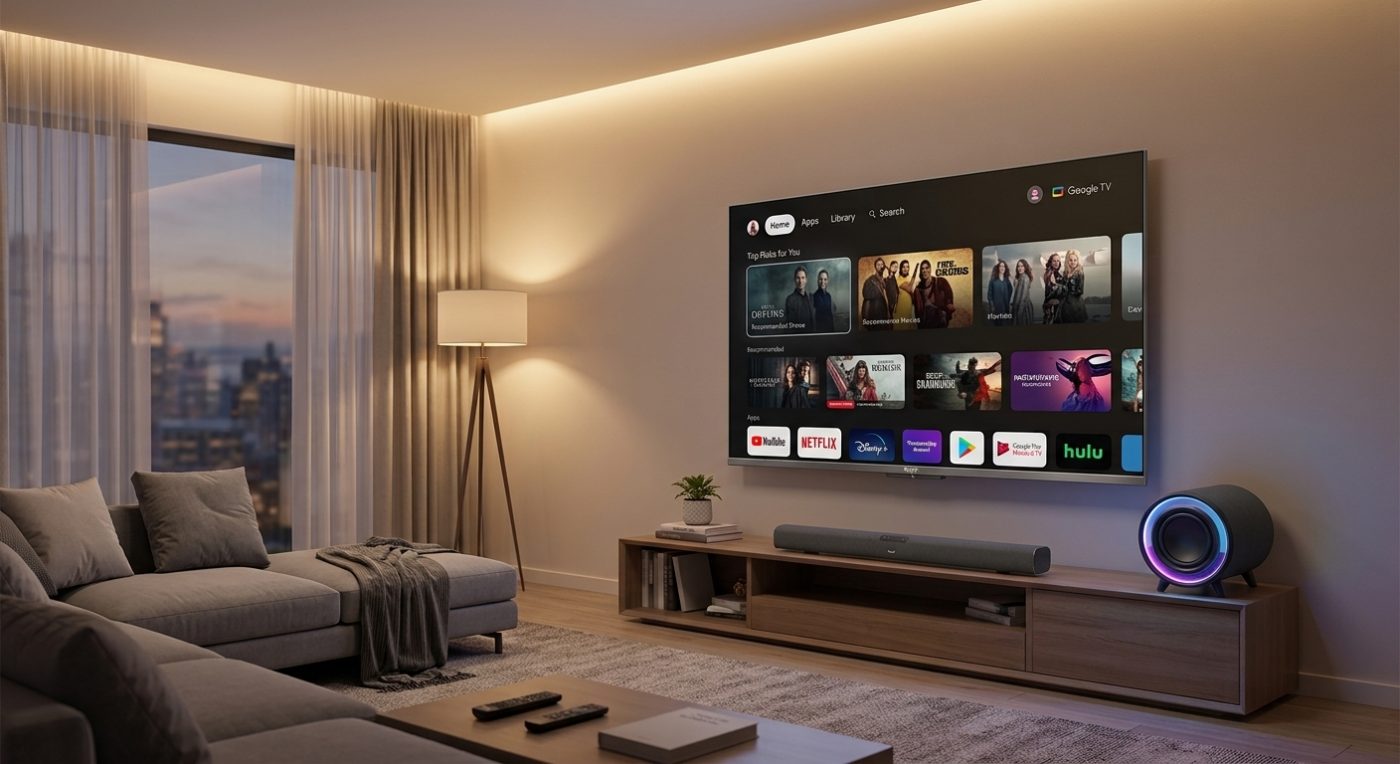
If you have a Google TV and the built-in speakers just aren’t cutting it, pairing a Bluetooth speaker is one of the easiest upgrades you can make. No cables, no complicated settings — just a few steps and you’re done.
This guide takes you through exactly how to do it, what to do if something goes wrong, and a few things worth knowing before you start.
What You’ll Need Before You Start
Before anything else, confirm that your TV actually runs Google TV (not just Android TV). Google TV is the newer interface from Google — it features a “For You” home screen and has a slightly different settings layout than older Android TV models.
You’ll also need a Bluetooth speaker that supports standard Bluetooth pairing. Most modern wireless speakers do, but it’s worth checking the manual if you’re not sure.
Make sure your speaker is charged and within a reasonable range of the TV — ideally within 1–2 metres during the initial pairing process.
Step-by-Step: Pairing a Bluetooth Speaker to Google TV
Step 1: Put your Bluetooth speaker in pairing mode
This varies by brand, but it usually means holding down the Bluetooth button until the indicator light starts flashing. Check your speaker’s manual if you’re unsure — some speakers require you to hold the button for 3–5 seconds.
Step 2: Open Settings on your Google TV
From the Google TV home screen, click the profile icon in the top-right corner, then select Settings. Alternatively, press and hold the Settings button (gear icon) on your remote.
Step 3: Go to Remotes & Accessories
Inside Settings, look for Remotes & Accessories. This is where your Google TV manages all Bluetooth connections — remotes, speakers, headphones, and other devices.
Step 4: Select “Add accessory” or “Pair accessory”
Your TV will start scanning for nearby Bluetooth devices. Your speaker should show up in the list within a few seconds. If it doesn’t appear, double-check that the speaker is still in pairing mode.
Step 5: Select your speaker and confirm
Click on the speaker’s name in the list. Your TV will attempt to pair with it. Once connected, you’ll see a confirmation on screen. The TV’s audio should now route through your Bluetooth speaker automatically.
How to Set Your Bluetooth Speaker as the Default Sound Output
In some cases, the TV may connect to the speaker but continue playing audio through its own speakers. To fix this, head back to Settings, then go to Display & Sound → Sound → Audio Output. From there, select your Bluetooth speaker as the preferred output device.
This ensures that any time the speaker is on and connected, the TV will route sound through it without you having to change anything manually each time.
Common Problems and How to Fix Them
Speaker not showing up during scan: The most common reason is that the speaker isn’t in pairing mode. Try turning it off and back on, then put it into pairing mode again before scanning.
Audio is out of sync (lip sync issues): Bluetooth audio can sometimes have a slight delay. Some Google TVs have a Lip Sync adjustment under the audio settings. Check there first. If your speaker has an aptX Low Latency mode, enabling it (on both the speaker and TV, if supported) usually resolves this.
Keeps disconnecting: If the connection drops frequently, there may be wireless interference from other devices — routers, microwaves, or other Bluetooth gadgets nearby. Try moving the speaker closer to the TV or switching your Wi-Fi router to a 5GHz band to reduce interference.
TV won’t remember the speaker after switching off: Most Google TVs automatically reconnect to the last paired Bluetooth device when it’s switched on. If this isn’t happening, go to Remotes & Accessories, find your speaker, and check if there’s an option to keep it as a preferred device.
Does Every Google TV Support Bluetooth Audio?
Most Google TVs manufactured after 2020 support Bluetooth audio output. However, a small number of budget models may only support Bluetooth for remotes and not for audio devices. Check your TV’s specifications — specifically whether it lists “Bluetooth audio” or “A2DP support” — to confirm.
If you’re buying a new TV and wireless audio is a priority, look for models that explicitly list Bluetooth A2DP (Advanced Audio Distribution Profile) in the specs. This is the standard that allows high-quality stereo sound to stream wirelessly from the TV to a speaker.
A Note on Speaker Quality
Connecting any Bluetooth speaker is a step up from most TV built-ins, but the quality of that experience still depends heavily on the speaker itself. A durable, well-built speaker with good frequency response will make a real difference — not just in volume, but in clarity and depth.
At Royal Electronics, the Bluetooth soundbars available are built to last, backed by warranty support so you’re covered if anything goes wrong. That kind of reliability matters, especially for home entertainment setups where you want consistency over time.
Get Better Sound from Your Google TV Today
Connecting a Bluetooth speaker to your Google TV takes less than five minutes once you know the steps. The key things to remember: put the speaker in pairing mode first, use the Remotes & Accessories menu to pair, and set the audio output manually if it doesn’t switch automatically.
If you’re looking to purchase speakers or TVs, consider Royal Electronics TVs and Soundbars. They’re available at leading stores nationwide.
